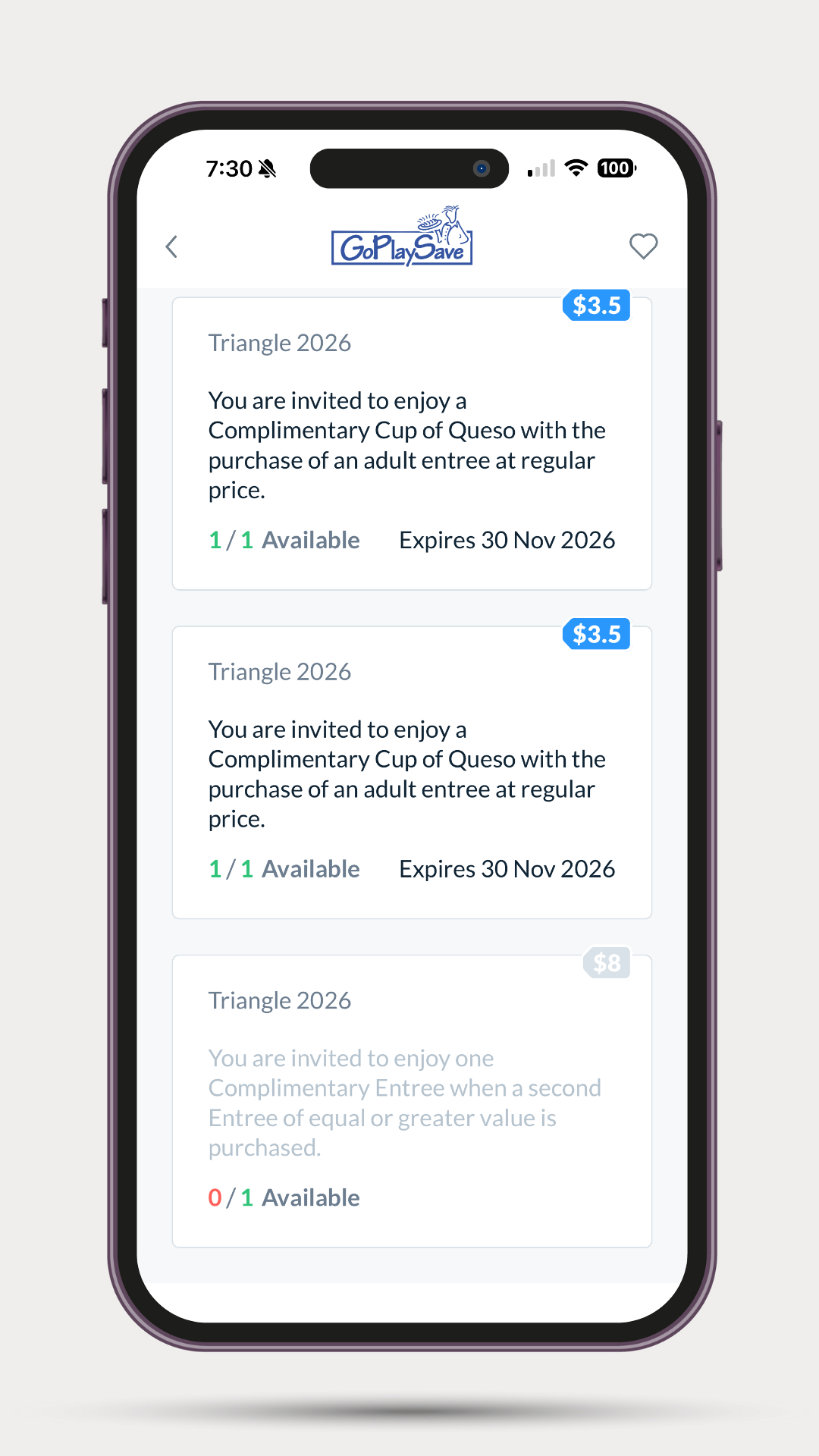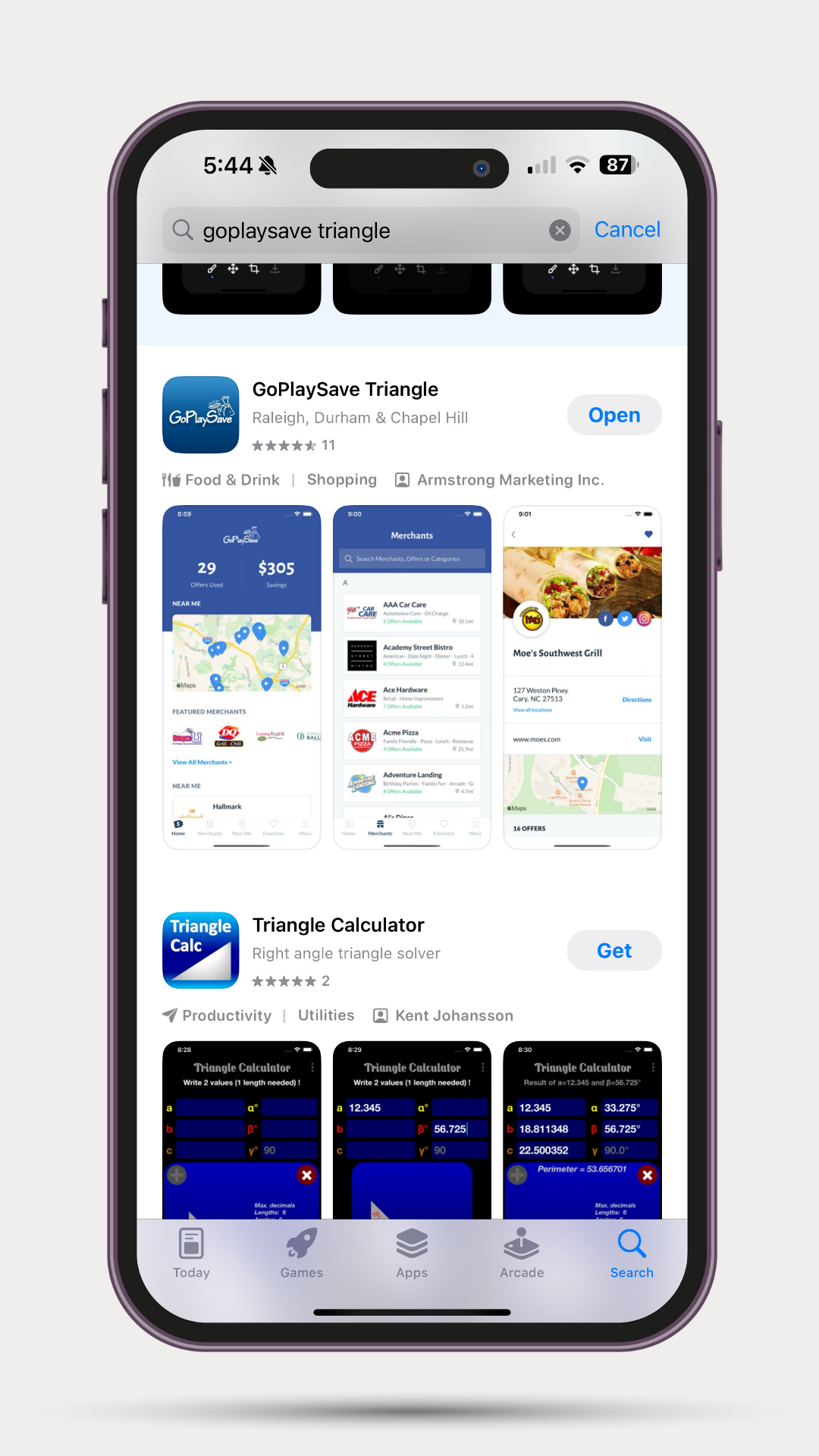
Search for and download the GoPlaySave Triangle App from the App Store.
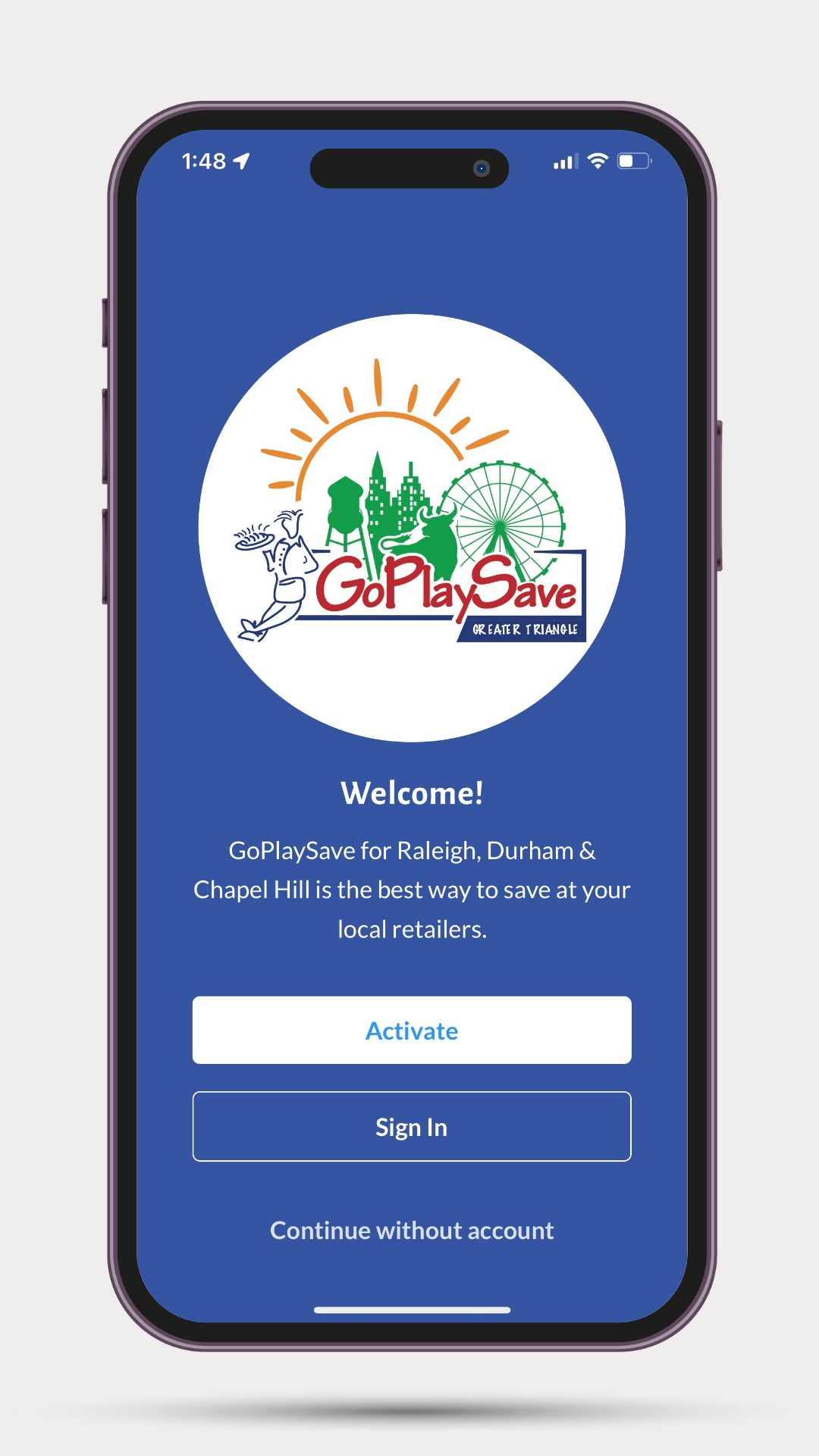
Open the App and click Activate.
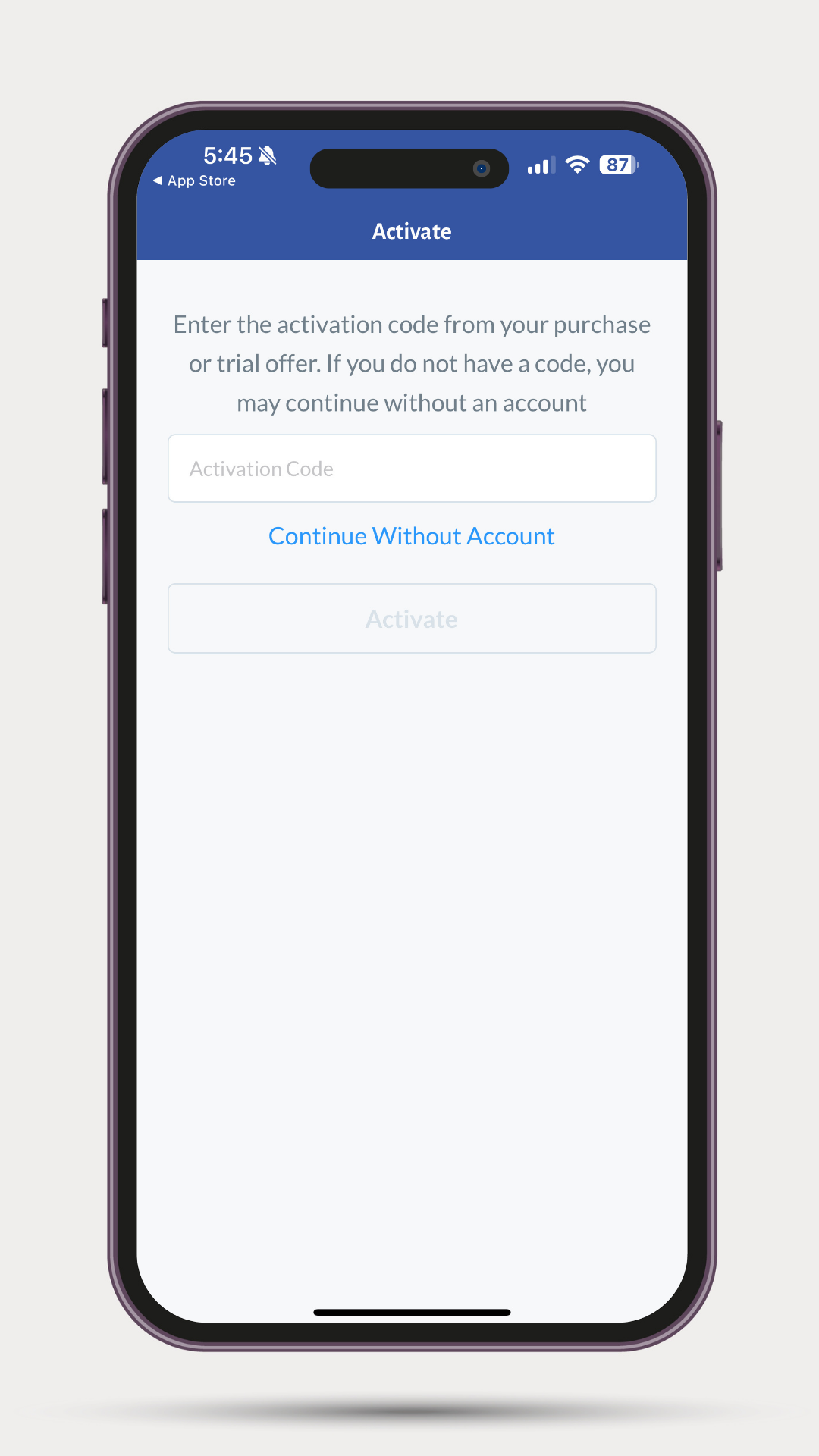
Enter the Activation Code that was emailed to you. Click here for more detailed activation instructions.
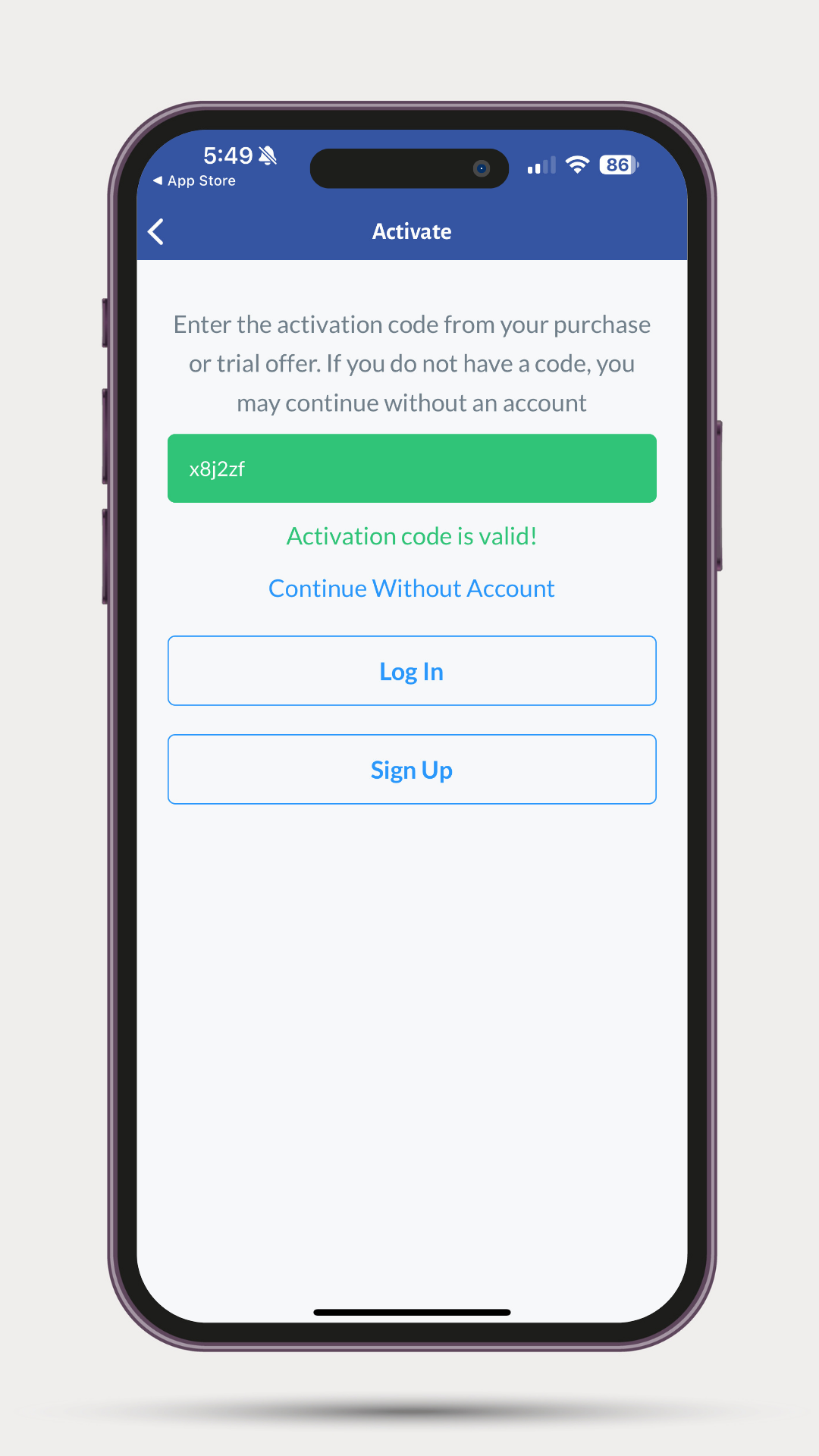
Click Sign Up for a new account or Log In for an exsisting account. Click here for more detailed activation instructions.
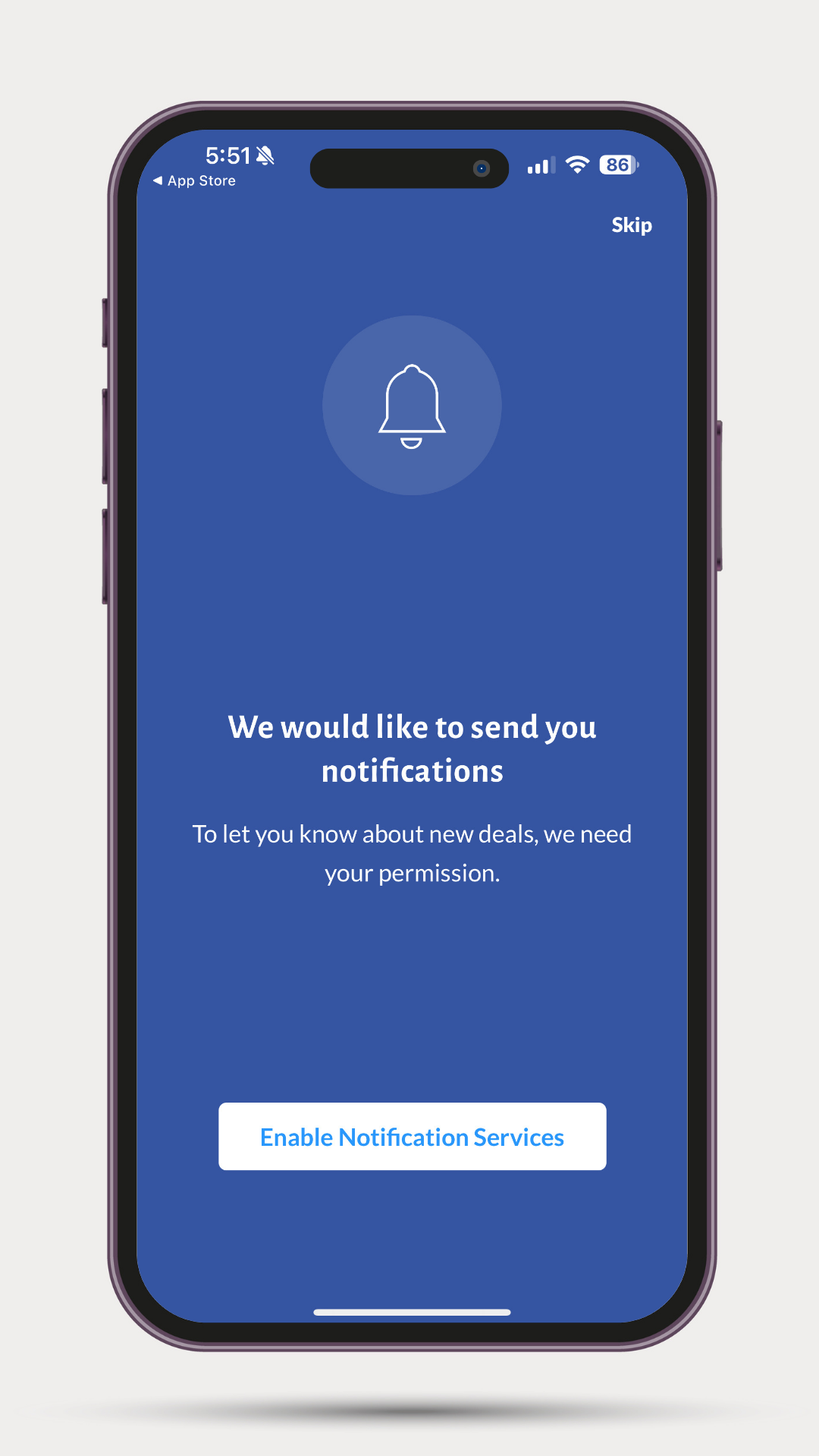
Make sure to enable notifications & location services. To get notified when new merchants are added & to find merchants near your location.
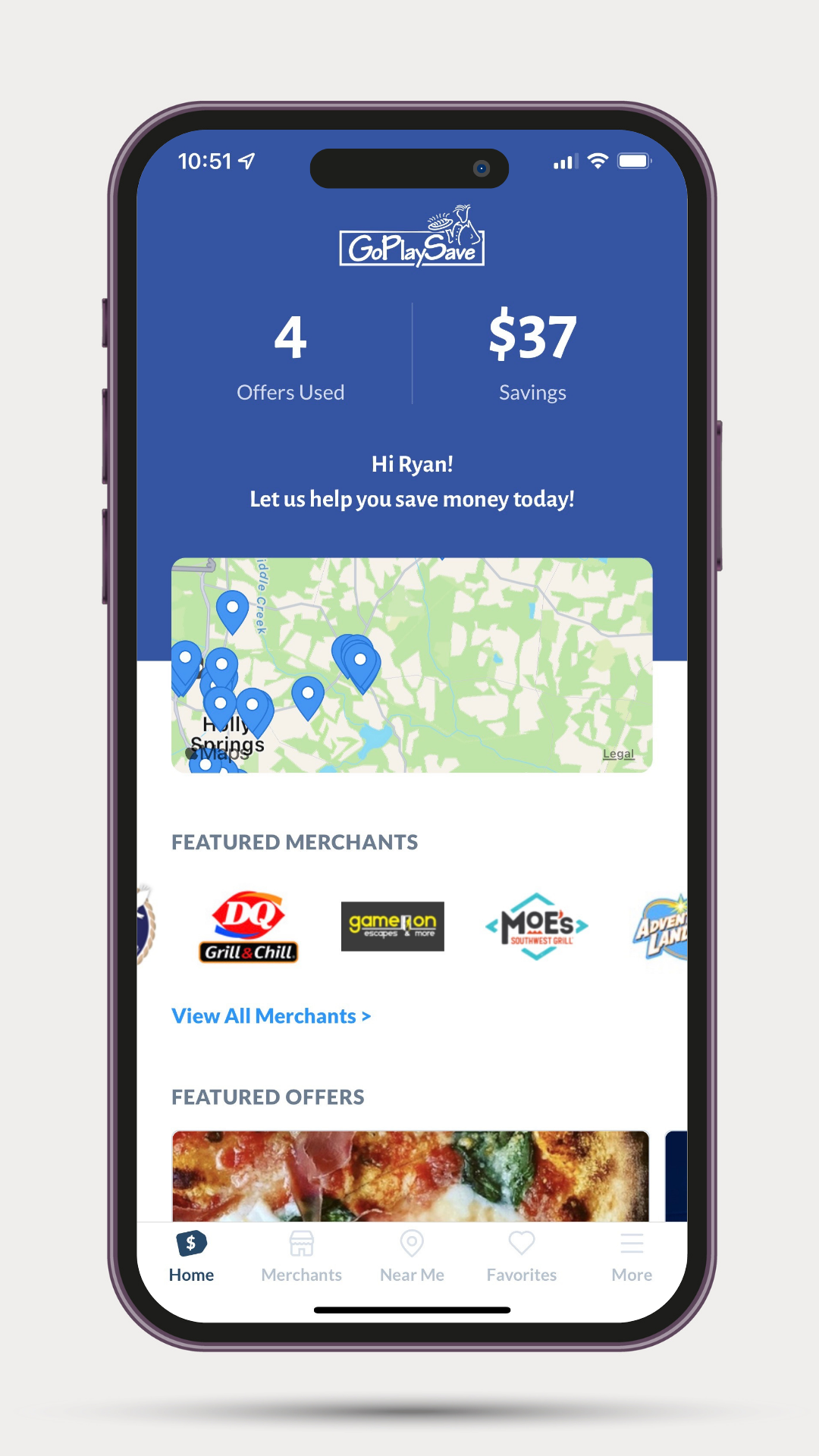
Welcome to the GoPlaySave Mobile App! From the Homepage you can track how many offers you have used & an estimate of how much money you have saved.
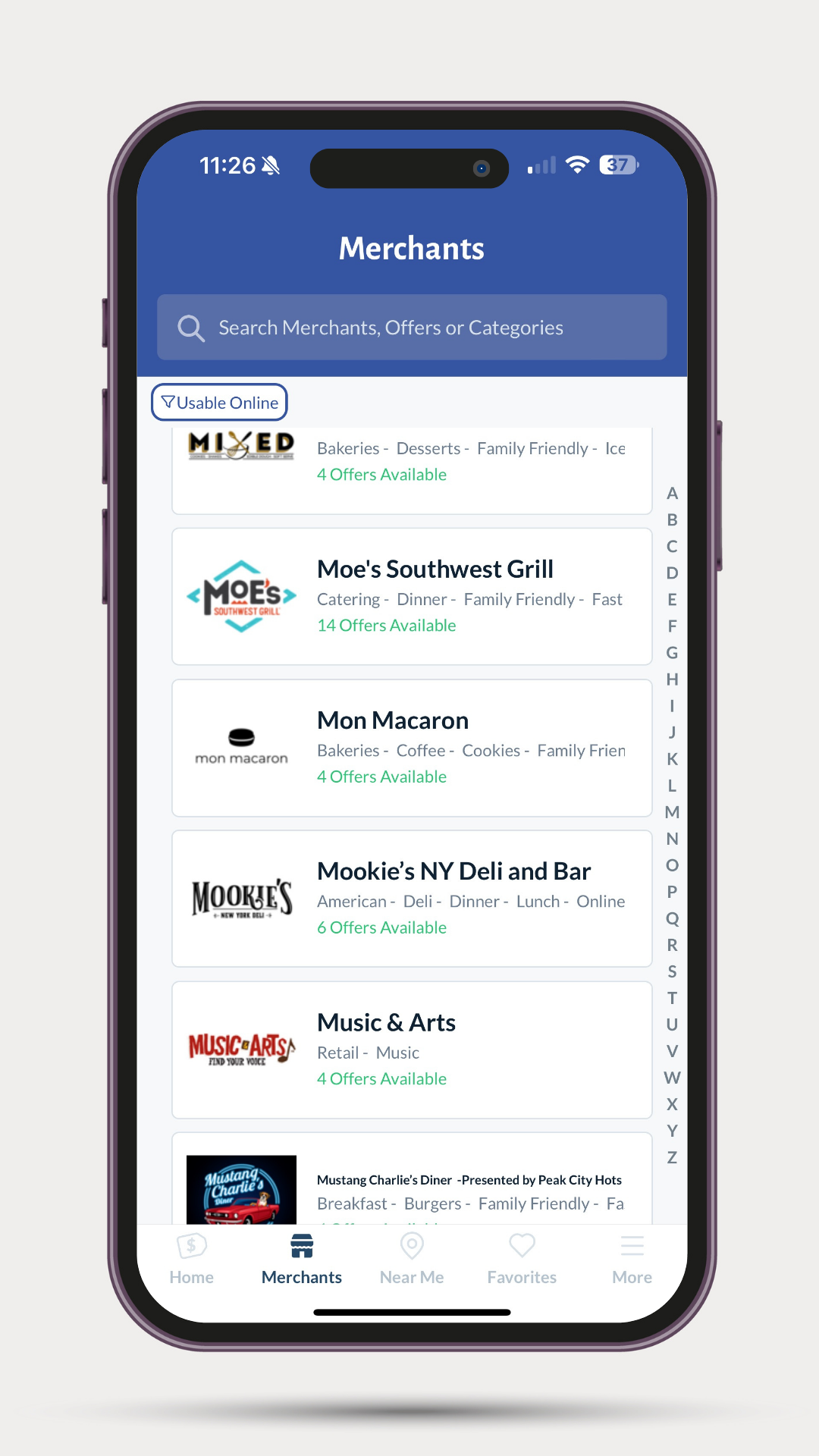
From the Merchants tab you get an alphabetical list of merchants. You can also search by name, category, or city/zip.
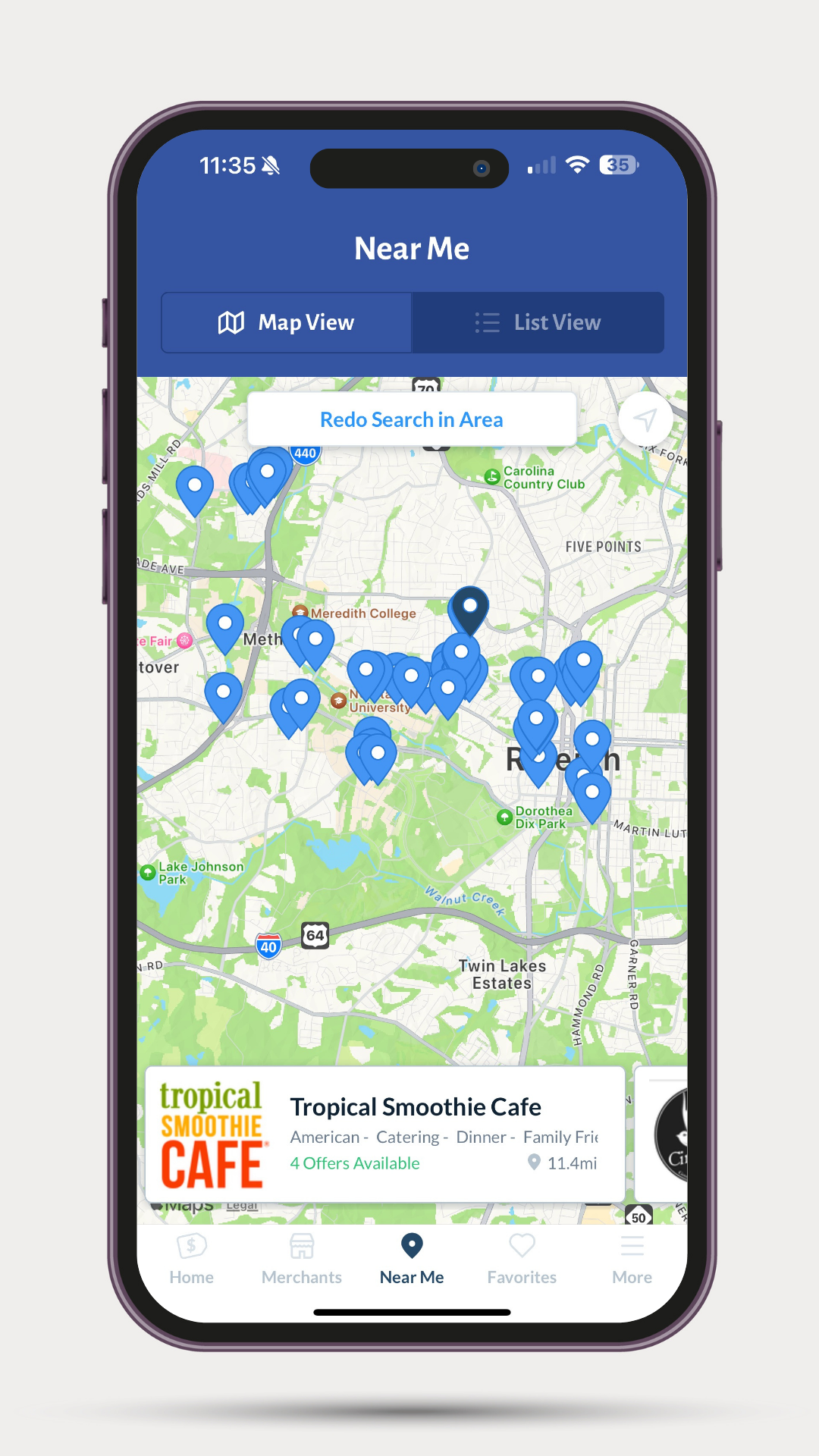
The Near Me tab will bring up a list of nearby merchants based on your location. You can select the map view to see them on the map.
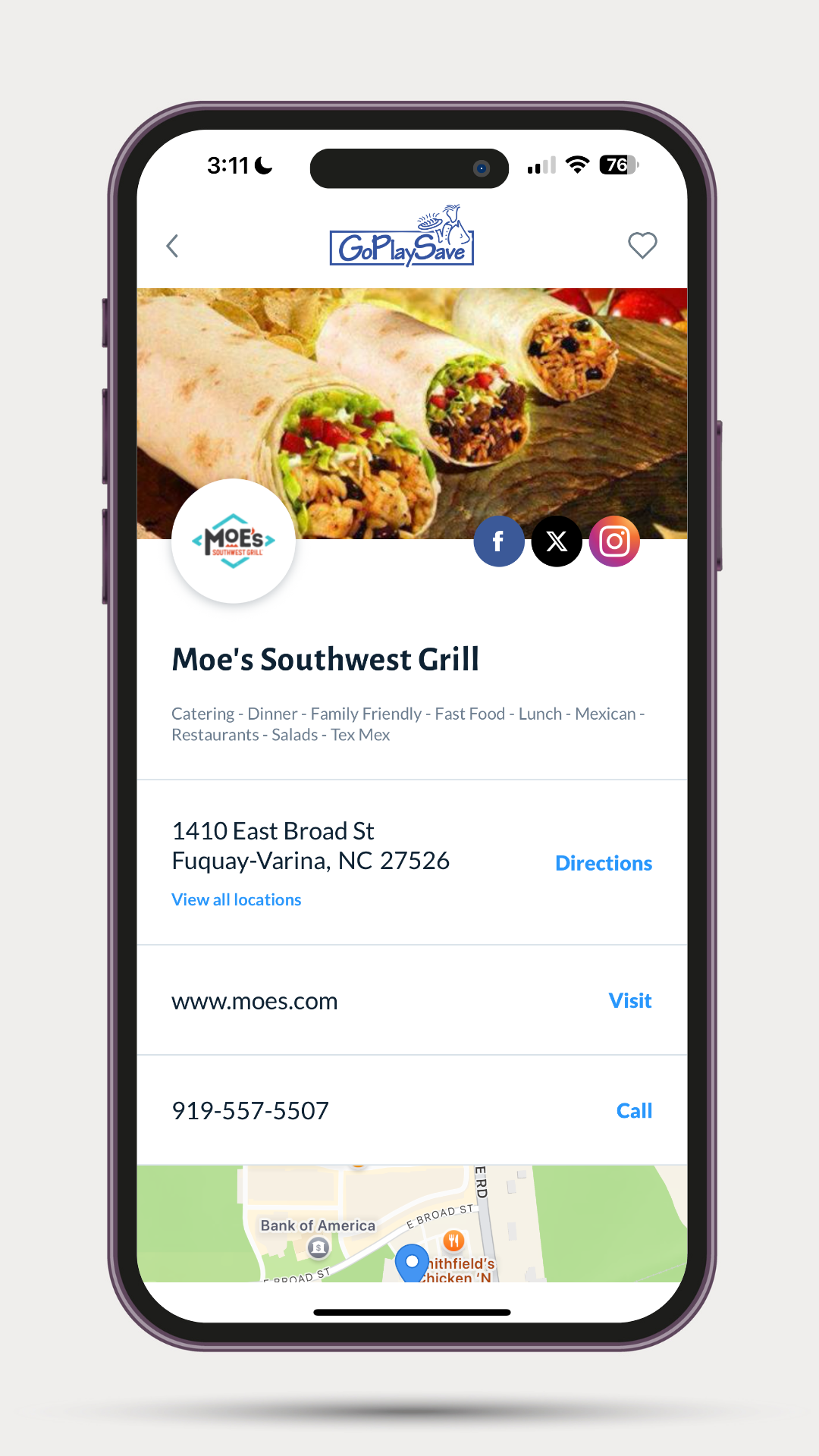
Once you select the merchant you will see the Merchant Details page. Here you will find all their contact info. Scroll down to see the offers.
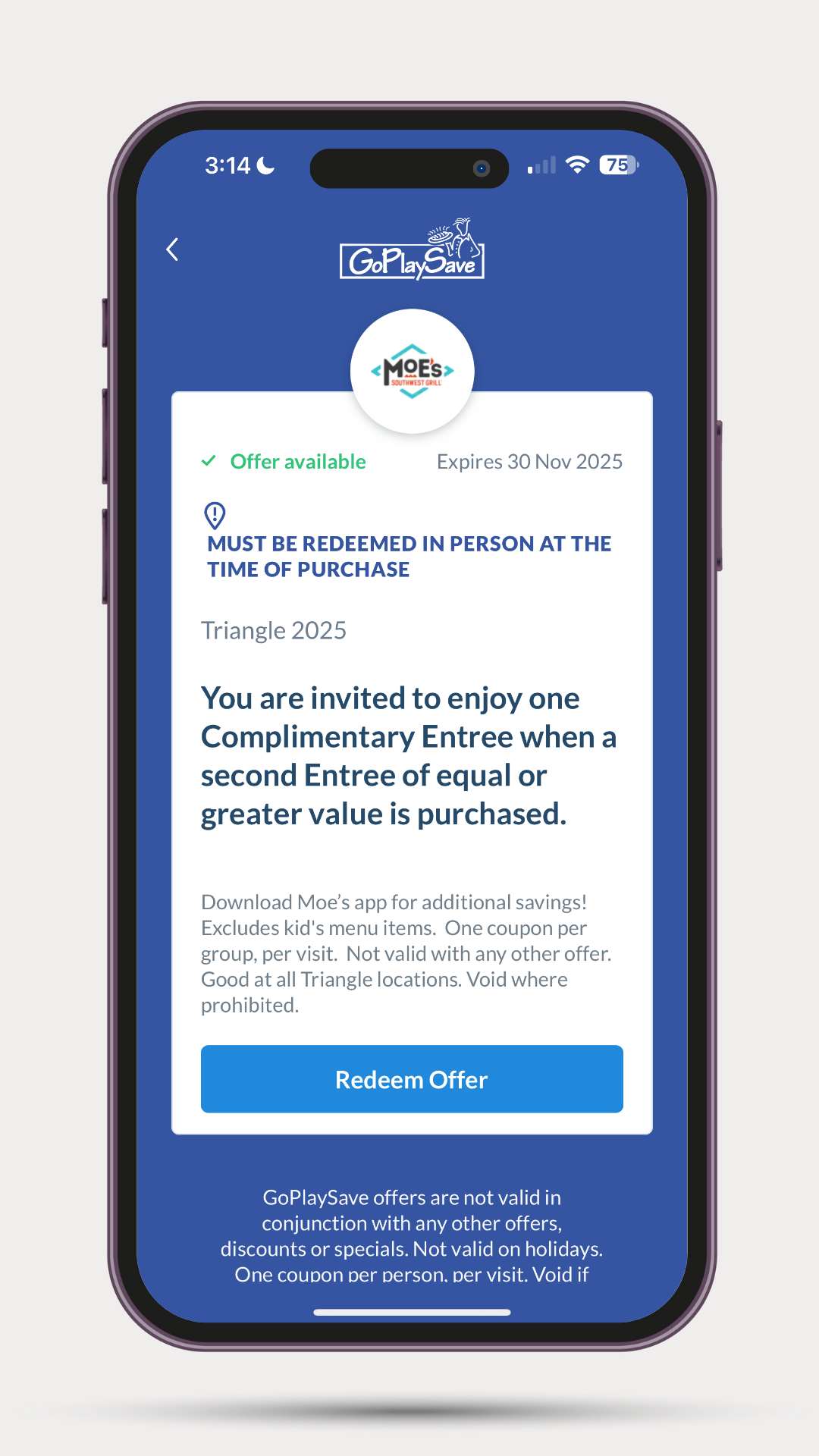
When you are ready to check out, select the offer, show to the merchant, and hit Redeem Offer.
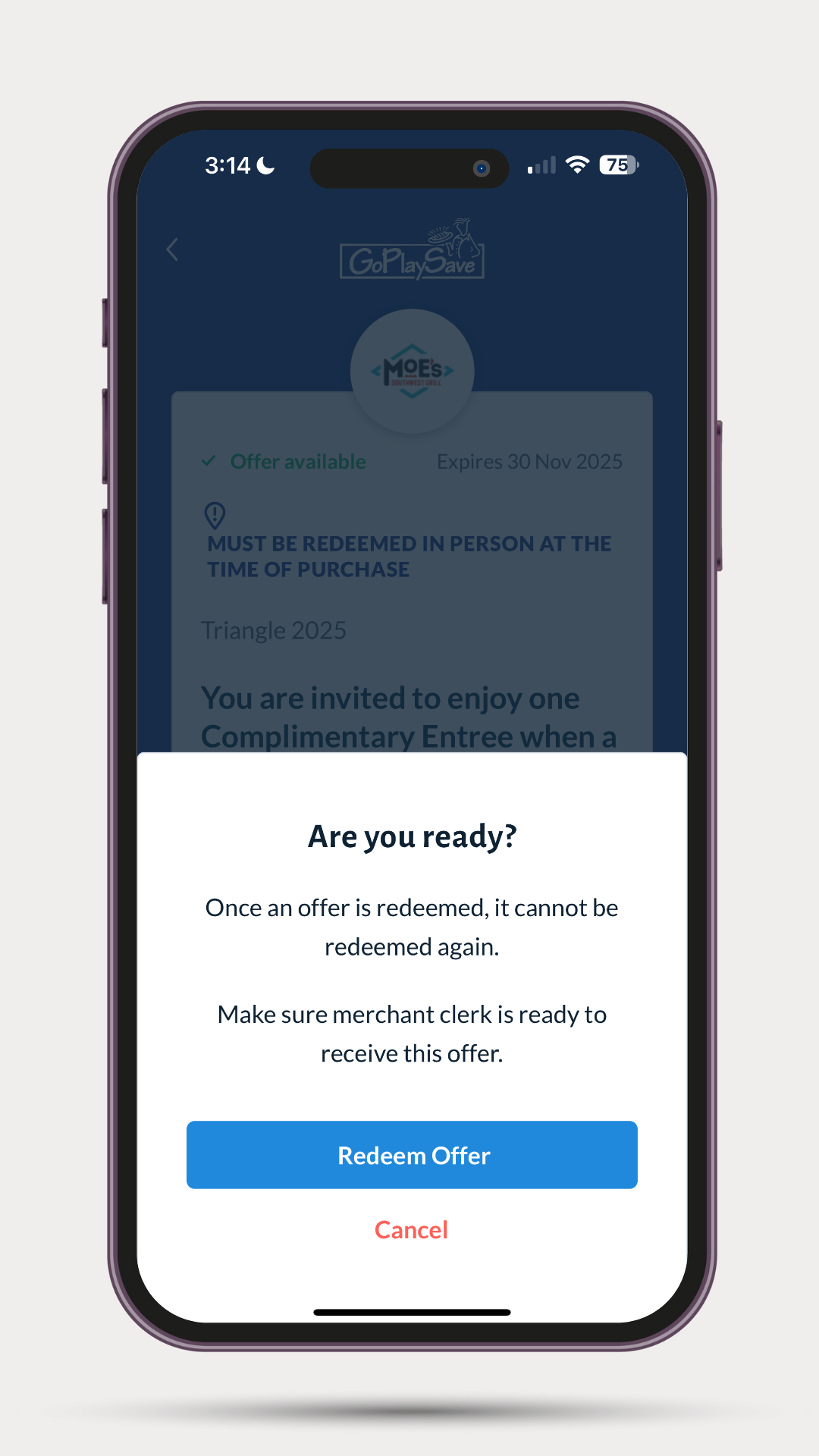
You will be given an opportuity to cancel, make sure the merchant is ready for you to redeem your offer.
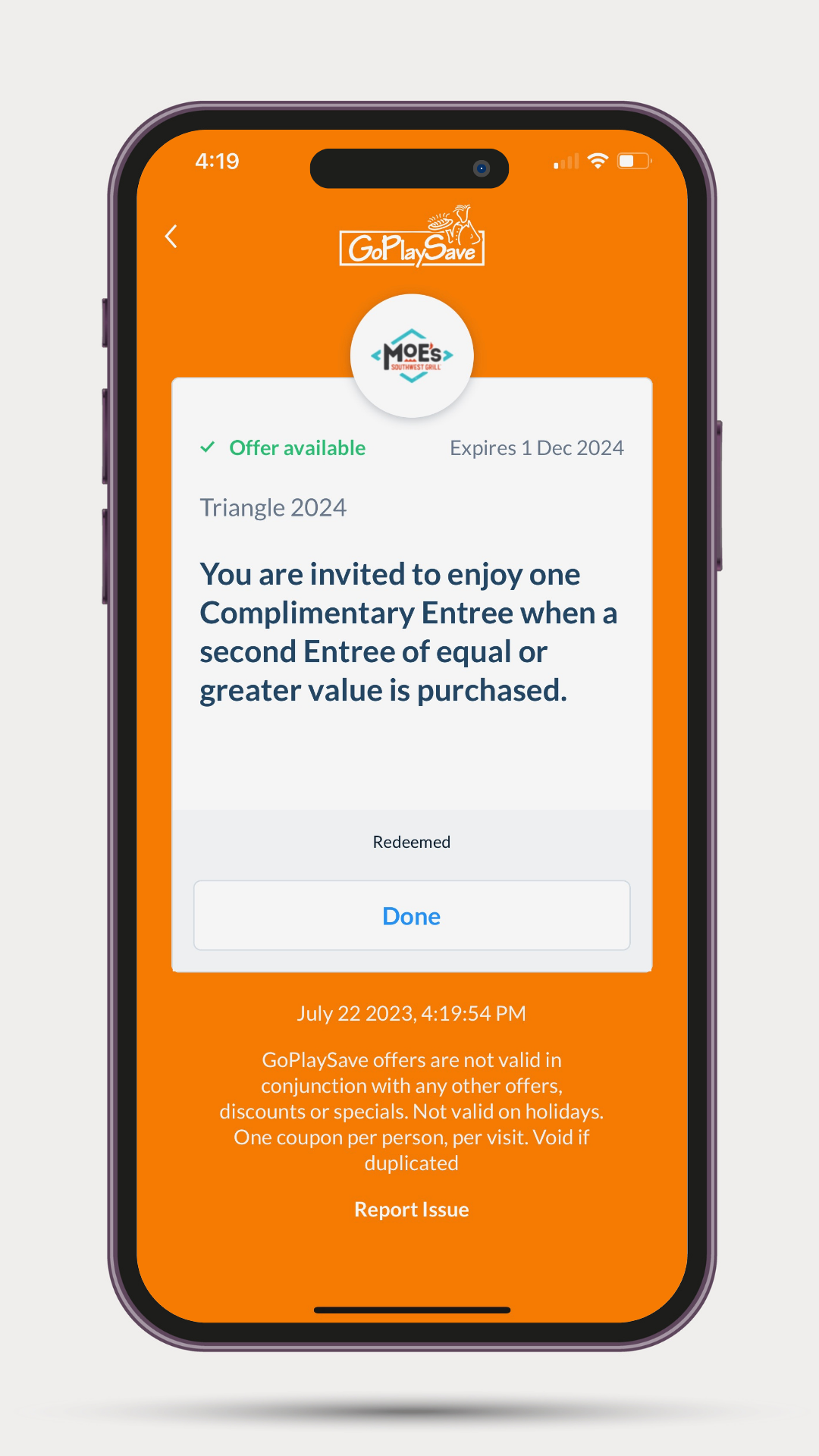
Most GoPlaySave offers are "show to redeem" meaning you simply show the redeemed coupon and the merchant gives you the discount. Notice that the screen will turn orange and the logo will bounce.
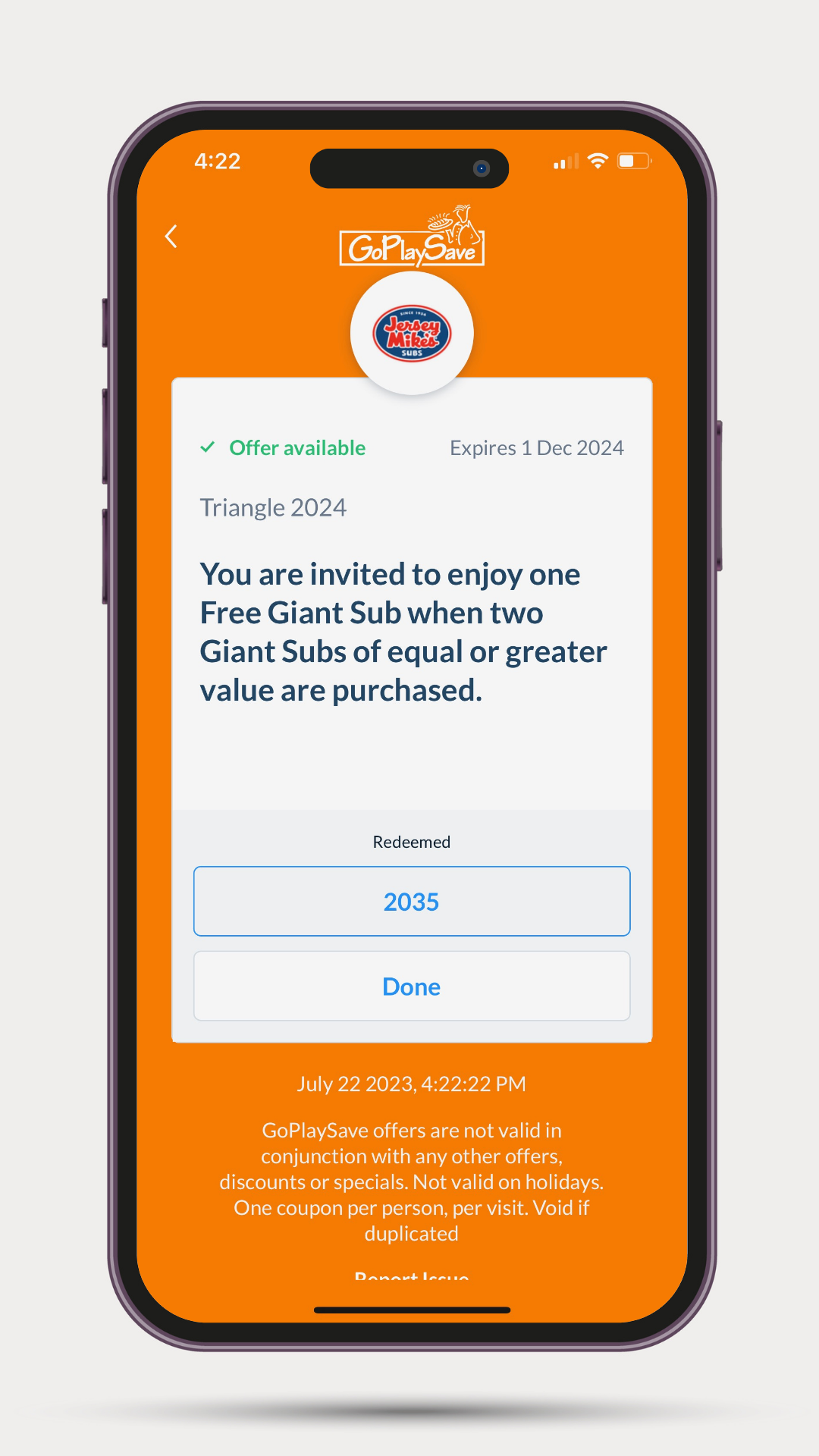
Some merchants will provide a coupon code that the merchant will enter into their POS system once you redeem the coupon.
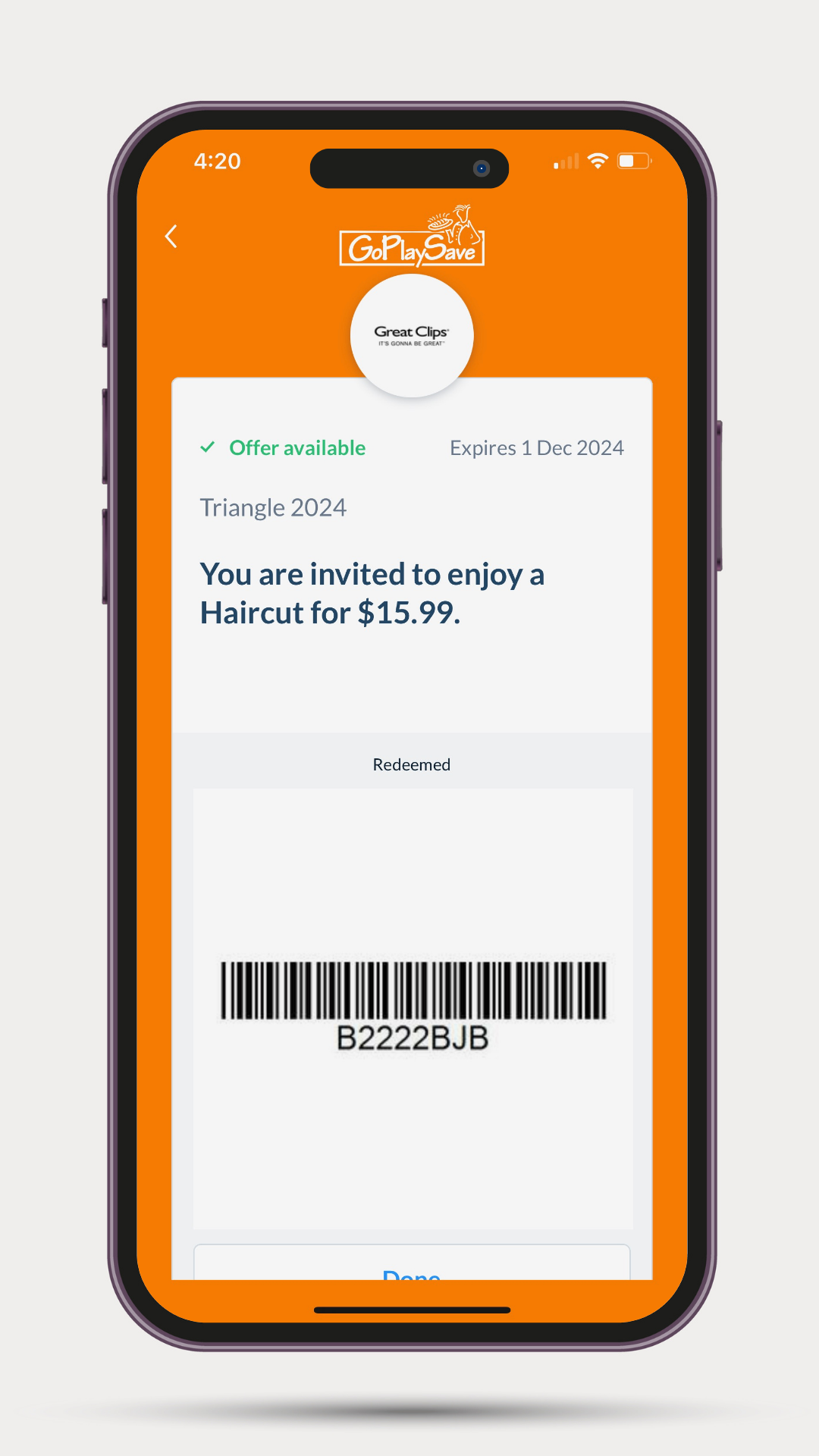
Sometimes a merchant will provide a bar code that the merchant can scan and their POS system will apply the discount.
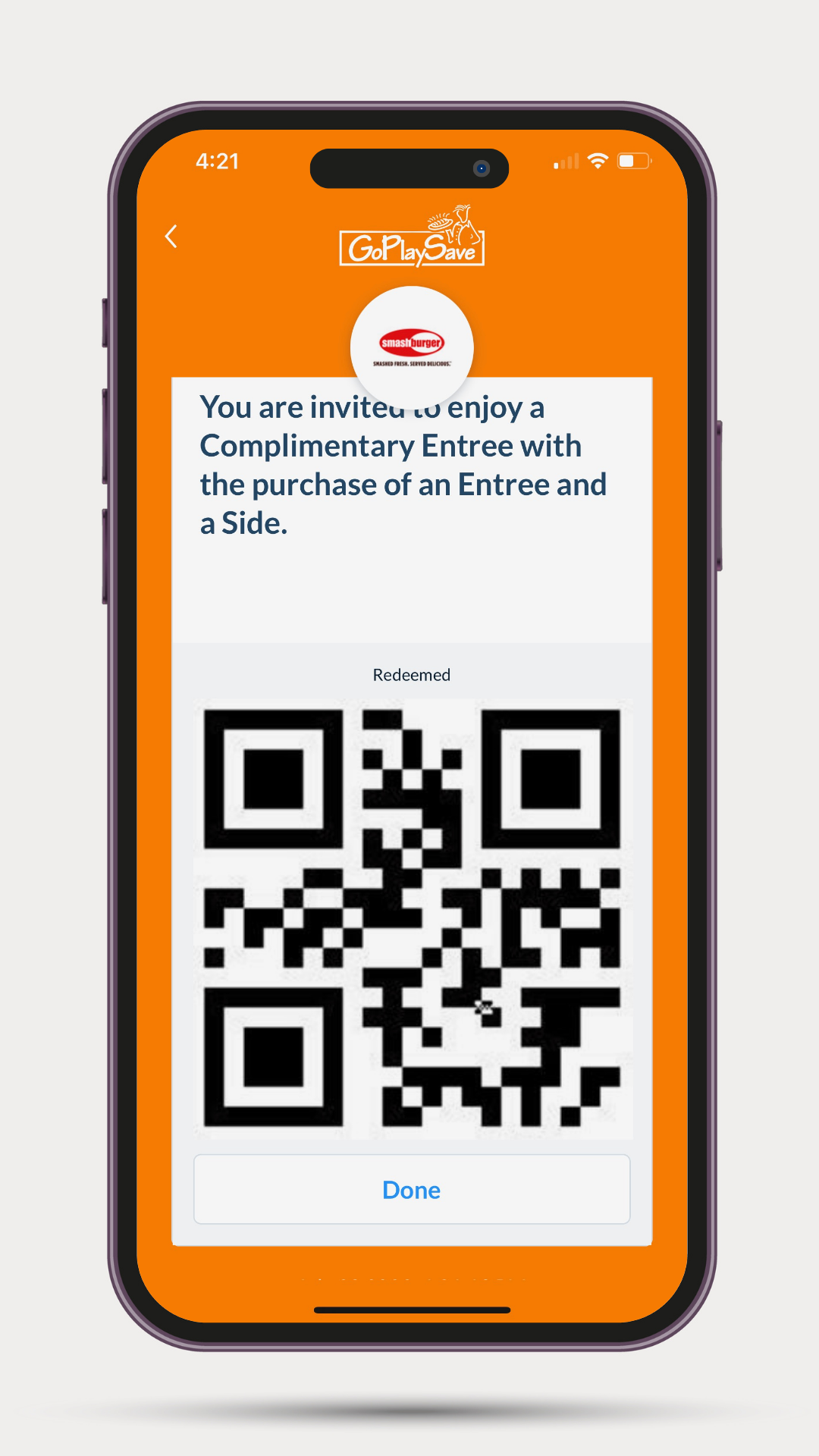
Another option a merchant has is to provide a QR code. This works the same as the bar code.
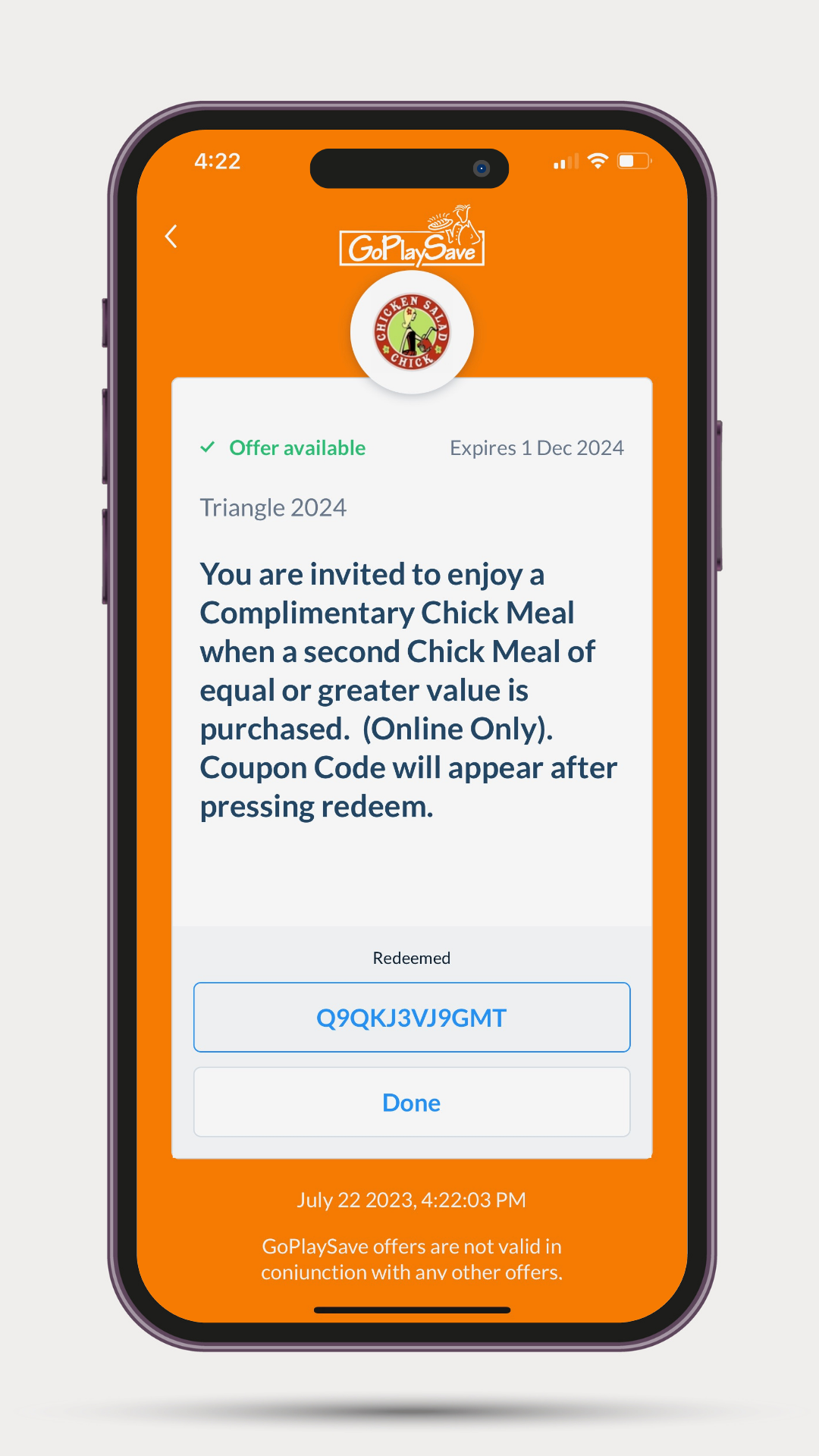
Merchants can also provide a unique coupon code. You will enter this code into the merchants website or mobile app to provide you the discount.